AI Photo Editing Workflow: Natural, Stunning Results
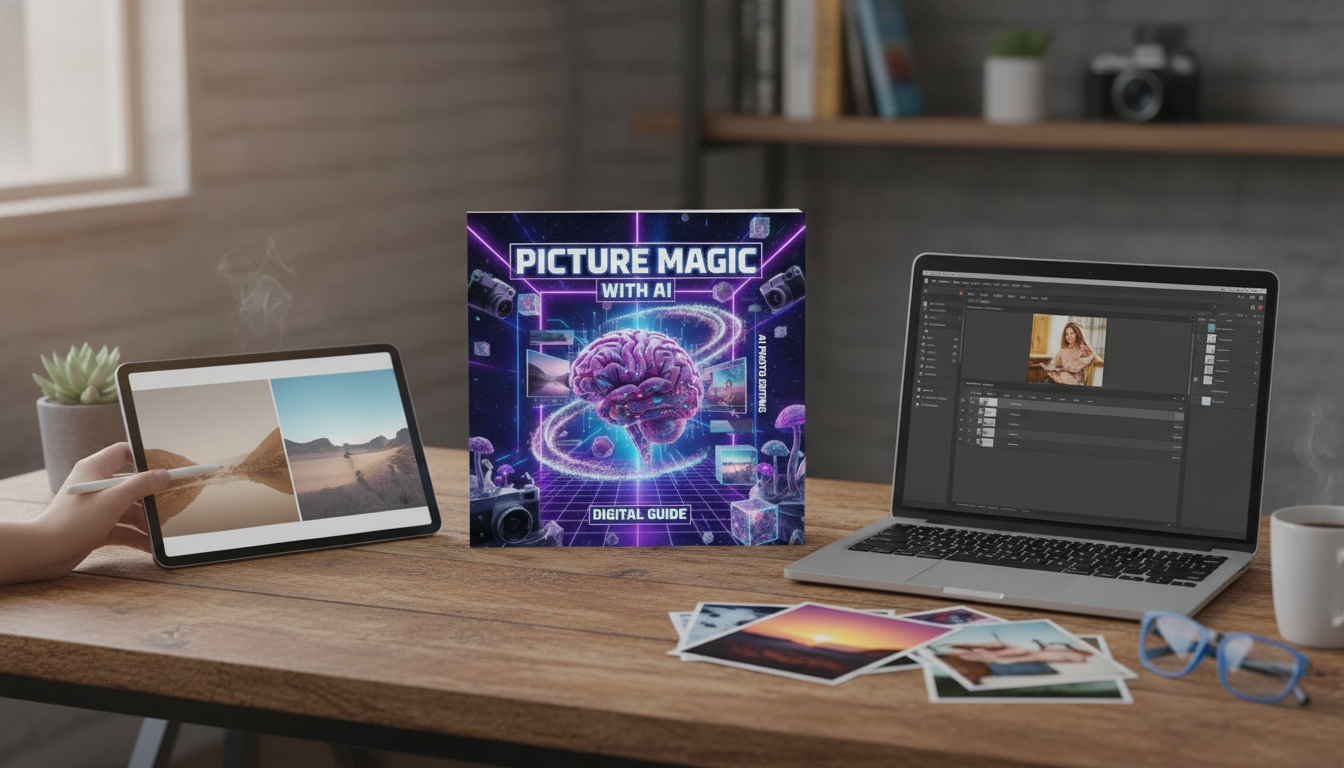
Picture Magic with AI: A Practical Guide to Editing Photos for Stunning Results
AI photo editing can speed up retouching, simplify complex selections, and unlock new creative directions—without replacing taste, intent, or craft. The best results come from using AI where it’s strong (pattern detection, fast selections, smart cleanup) and stepping in where humans still win (storytelling, realism checks, and brand consistency). Below is a practical, repeatable workflow for creators, photographers, and designers, plus an optional digital eBook for a structured step-by-step path.
What AI Photo Editing Can Do (and Where It Still Needs You)
Modern editors can feel like having an assistant who never gets tired: they’re great at repetitive, technical chores and quick iterations. The tradeoff is that AI can also confidently create errors—so a light, consistent review process matters.
- Speed up repetitive tasks: masking skies, removing objects, denoising, and sharpening can happen in seconds.
- Improve consistency across a set: AI can help match tones, keep skin retouching balanced, and maintain color grading continuity.
- Enable new looks: generative fills, background swaps, style transfer, and composite assistance can expand what’s possible on tight timelines.
- Keep creative control: AI suggestions work best when guided by a clear intent (mood, subject priority, brand palette).
- Watch for artifacts: strange edges, warped textures, inconsistent lighting, and overly smooth skin are common tells.
For a quick overview of how generative features are commonly implemented in pro tools, see Adobe Photoshop — Generative Fill.
A Simple Workflow for AI-Assisted Edits
A reliable workflow keeps AI from “stacking” mistakes. Do foundational corrections first, then cleanup, then targeted masks, then finishing. This sequence prevents you from color-grading distractions you’ll remove later and makes it easier to spot mismatched textures.
- Start with a clean base: crop/straighten, correct lens distortion, and set exposure and white balance.
- Run AI cleanup early: remove distractions (dust, wires, stray objects) before heavy grading.
- Use AI masking selectively: separate subject/background, skin/hair/clothing, and key light areas for targeted edits.
- Refine manually: soften mask edges, restore texture, and correct any AI mistakes at 100% zoom.
- Finish with creative grading: apply style, vignette, local contrast, and final sharpening.
- Export for the destination: web, print, or social—each needs different size, compression, and color settings.
AI Edit Workflow: Best Use Cases and Common Pitfalls
| Step | AI Helps With | Common Mistake | Quick Fix |
|---|---|---|---|
| Cleanup | Removing objects, spot healing, content-aware fill | Repeated patterns or smeared textures | Use smaller selections; clone/patch touch-up; add subtle grain |
| Masking | Sky/subject/skin selection, hair edges | Halos and edge fringing | Feather slightly; contract mask; manually brush problem areas |
| Enhancement | Denoise, sharpen, super-resolution | Plastic skin or crunchy detail | Dial back strength; mask sharpening off skin; preserve texture |
| Color | Auto tone/color suggestions, match looks | Over-saturated or inconsistent series | Use reference frame; limit saturation; apply uniform HSL adjustments |
| Generative edits | Background swaps, expansions, object additions | Lighting mismatch and scale issues | Match direction/temperature of light; adjust shadows; keep additions subtle |
| Export | Smart resizing and compression suggestions | Wrong color profile or soft output | Use sRGB for web; embed profiles; sharpen for output size |
Core Techniques: Results That Look Natural
Natural-looking edits usually come down to three things: believable texture, coherent light, and controlled color. AI can assist each one—if you keep it targeted.
- Object removal: prioritize believable reconstruction; avoid removing elements that affect shadows/reflections without rebuilding them.
- Portrait retouching: reduce blemishes while keeping pores and fine texture; avoid uniform blur across skin.
- Sky and background control: recover highlights, add depth with dehaze carefully, and ensure the horizon looks realistic.
- Noise reduction: apply more to shadows and less to midtones; protect details like hair and fabric weave.
- Sharpening: sharpen edges, not flat areas; avoid sharpening noise and skin.
When working with portraits, a helpful habit is toggling edits on/off while zoomed out (for overall believability) and zoomed in (to confirm texture hasn’t collapsed). If both views look right, you’re usually in a safe zone.
Creative AI Edits for Designers and Content Creators
AI is especially useful when a single image must serve multiple layouts—ads, hero banners, thumbnails, and social crops. The goal is to keep the subject consistent while adapting the surrounding space.
For teams that publish frequently, it’s also worth learning about provenance and authenticity efforts such as C2PA — Coalition for Content Provenance and Authenticity, especially when generative edits are part of your pipeline.
Quality Checks Before Export
For a broader view of responsible AI practices and risk-aware usage, Google — Responsible AI is a solid reference.
Digital eBook Option: Picture Magic with AI
If you prefer a structured learning path you can follow project-by-project, Picture Magic with AI (digital download eBook) is designed to turn AI features into a practical workflow—cleanup, masking, enhancement, color, and finishing—so results stay natural and intentional.
Creators who also want a separate, process-driven guide for long-form writing may like AI as Your Book-Writing Partner. For a lighter, exploration-focused download, Hobby Compass: Using AI to Discover Passions That Fit You is another option.
FAQ
Do AI photo edits reduce image quality?
They can if settings are pushed too far. Denoise/sharpen tools and generative edits may introduce artifacts, so a non-destructive workflow, targeted masking, and exporting at the correct size and color profile help maintain quality.
How can AI retouching look natural for portraits?
Keep texture intact and avoid global smoothing. Use targeted masks for skin corrections, preserve realistic dodge and burn, and review at 100% zoom to ensure pores, hairlines, and fine detail still look believable.
What’s the safest way to use generative fill for professional work?
Make subtle, defensible changes that match the scene’s lighting and perspective, and keep version history so you can roll back. Avoid edits that change factual context or brand-sensitive details, and confirm usage rights and platform policies for your deliverables.





Leave a comment